With Gameball integration, you can issue coupons when customers redeem points or as part of reward campaigns. The integration sends requests from Gameball to your coupon system, following the configurations you set up in the Gameball dashboard. This setup allows Gameball to generate coupons directly in your system, whether it’s a custom-built coupon system or a third-party e-commerce CMS. Let’s explain how the integration with your coupon system works on a bit lower tier. The Initiate Redeem Request is triggered by your customer when they create a new coupon in exchange for redeeming points or when they win a coupon as a campaign reward. This request is sent to Gameball Backend, which builds an HTTP request and sends it to your coupon system endpoint. The HTTP request query parameters and payload are defined by you in your coupon configuration section in the dashboard. For example, the destination where the request will be sent is the endpoint responsible for creating coupon(s) in your coupon system, e.g. https://your-app-api/coupon/create.
Coupon redemption flow
If you already have an API or system that creates coupons for your customers, Gameball needs configuration about this endpoint so Gameball can create coupons at your endpoint.

Coupon Redemption Workflow

The integration workflow involves two primary actions:
  1. Initiating Redeem Request: Triggered when a customer wants to redeem points for a coupon or receives a campaign-based coupon reward.
  2. Coupon Generation: Gameball sends an HTTP request to your specified endpoint for creating coupons, based on your system configurations.

This integration guide will walk you through two main steps: setting up your coupon system integration and enabling customer redemption and usage of those coupons.

Integration Guide Structure

  1. Integrate Your Coupon System
    Configure Gameball to work with your coupon system: endpoint details, request parameters, and payload structures in the Gameball dashboard. Once completed, Gameball can automatically generate coupons in your system based on customers’ redeemed points or campaign rewards.
  2. Customer Coupon Redemption and Usage
    After configuration, learn how customers redeem points to obtain coupons and how to use those coupons during checkout.

Setting Up Coupon Configuration in Gameball

To start, access the coupon configuration section in the Gameball dashboard and provide the necessary details about your coupon endpoint.
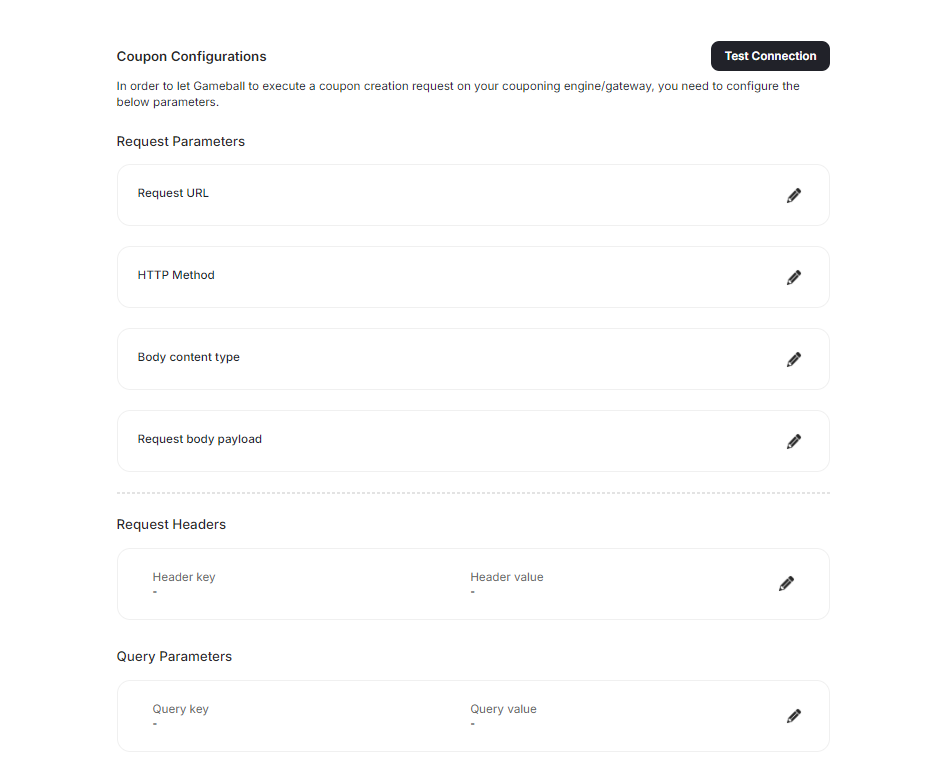
Coupon configuration in dashboard
You can also configure via the Update Coupon Configuration API. This API defines your endpoint and specifies how Gameball should send requests to create coupons.

Attributes

url string (Required)
The URL of your API endpoint where coupons are created. Gameball sends requests to this endpoint whenever a coupon needs to be generated.

method string (Required)
HTTP method used to send requests to the coupon creation endpoint. Common values are POST or PUT.

contentType string (Required)
Request content type expected by your server. Common values: application/json or application/x-www-form-urlencoded.

authentication object (Optional)
Authentication details required to access the coupon API (e.g., Basic or Bearer).

queryParams array (Optional)
Query parameters appended to the endpoint URL (key-value pairs) for identification, filtering, or configuration.

headers array (Optional)
Custom headers required for the request (e.g., API keys).

payload object (Optional)
Structure of the JSON body Gameball sends to your endpoint when creating a coupon. Use placeholders that Gameball replaces with actual data.

couponMapping object (Optional)
Enable/disable supported coupon types in your system.

platforms array (Optional)
Platforms where the configuration applies (web, mobile, POS).

Testing and Validating Configuration

After setting up your configurations:
  1. Use Test Connection in the Gameball dashboard to ensure the integration is working, or use the Get Coupon Configuration API to view or verify your existing configuration. This API provides details on your current setup, helping ensure that Gameball correctly communicates with your couponing system.
  2. Confirm that your coupon creation endpoint returns a 200 status for successful coupon creation.

Example Coupon Model

Define a coupon model in your system that matches Gameball structure. This enables consistent data exchange between Gameball and your coupon system.
enum ECouponType {
  Percentage = 1,
  FixedAmount = 2,
  FreeShipping = 3,
  FreeProduct = 4
}

class Coupon {
  public code: string;
  public customerId: string;
  public value: number;
  public usageLimit: number;
  public expiresAfter: number;
  public oncePerCustomer: boolean;
  public entitledProductIds: string[];
  public entitledCollectionIds: string[];
  public couponType: ECouponType;
}

Coupon Creation Endpoint

Create an endpoint in your system for Gameball to call when generating coupons.
app.post('/api/coupons', async (req, res) => {
  try {
    const { code, value, customerId, usageLimit, expiresAfter, oncePerCustomer, entitledProductIds, entitledCollectionIds, couponType } = req.body;
    const coupon = new Coupon(code, customerId, value, usageLimit, expiresAfter, oncePerCustomer, entitledProductIds, entitledCollectionIds, couponType);
    res.status(200).send('Coupon created successfully');
  } catch (err) {
    console.error(err);
    res.status(500).send('Server Error');
  }
});
Sample Payload:
{
  "code": "OFF25",
  "customerId": "12345",
  "value": 25,
  "usageLimit": 1,
  "expiresAfter": 10,
  "oncePerCustomer": true,
  "entitledProductIds": [],
  "entitledCollectionIds": [],
  "couponType": 2
}

Example using e-commerce platform (WooCommerce)

Please note that the same steps can be applied to different platforms with slight changes based on your platform; we are only using WooCommerce for the sake of this example.
In this guide, we show how to integrate a platform’s existing coupon system with Gameball backend, using WooCommerce as the example.

Integrating With WooCommerce coupon API

We are only interested in the create coupon endpoint, so we can safely ignore other endpoints related to coupons.
  1. Search for the API responsible for creating coupons (e.g., WooCommerce Create a coupon).
  2. Fill in the configurations based on the create coupon endpoint’s request structure. For example, WooCommerce expects the following JSON when creating a new coupon:
{
  "code": "MYCOUPON",
  "amount": 10,
  "discount_type": "percent",
  "usage_limit": 100,
  "expiry_date": "2023-12-31",
  "product_ids": [],
  "product_categories": []
}
Based on this structure, add the configurations we mentioned previously.
{
  "Authorization": "OAuth oauth_consumer_key=ck_c9943d372c50, oauth_signature_method=HMAC-SHA1, oauth_timestamp=..., oauth_nonce=ESXiR5boeRS, oauth_version=1.0, oauth_signature=ws%2F6UwgNor56Huc4ULYTVp51bIQ%3D"
}
Payload mapping
{
  "customerId": "{{email_restrictions}}",
  "entitledProductIds": "{{product_ids}}",
  "entitledCollectionIds": "{{product_categories}}",
  "oncePerCustomer": "{{usage_limit_per_user}}",
  "code": "{{code}}",
  "usageLimit": "{{usage_limit}}",
  "value": "{{amount}}",
  "couponType": "{{discount_type}}"
}
If the platform changes a property name (e.g., discount_typecoupon_type), adjust accordingly:
{
  "customerId": "{{email_restrictions}}",
  "entitledProductIds": "{{product_ids}}",
  "entitledCollectionIds": "{{product_categories}}",
  "oncePerCustomer": "{{usage_limit_per_user}}",
  "code": "{{code}}",
  "usageLimit": "{{usage_limit}}",
  "value": "{{amount}}",
  "couponType": "{{coupon_type}}"
}
You can pass required attributes only. In WooCommerce, only code is required, so the following is also valid:
{
  "code": "{{code}}"
}
The coupon creation endpoint must return HTTP 200 for the coupon to be created successfully.
  • Define coupon type values. For WooCommerce, discount types include percent, fixed_cart, and fixed_product. Enable the corresponding types in the Gameball dashboard and provide the matching values.
  • Click Test Connection to verify your configuration.
Once your coupon system is fully configured within Gameball, you’re ready to allow customers to start redeeming points for coupons and using these coupons as rewards. Gameball will seamlessly communicate with your couponing system to generate coupons based on customer redemptions and campaign rewards.

Coupon Redemption Guide

Once a coupon is redeemed or awarded to a customer, it can be applied to an order, allowing the customer to enjoy discounts or offers based on the coupon configurations. Overview of Coupon Redemption Scenarios
  1. Coupon as a Campaign Reward
    Configure campaigns in the dashboard where customers can win coupons as rewards. When a customer completes campaign criteria, Gameball issues a coupon to the customer’s account for later use.
  2. Manual Coupon Redemption
    Customers can redeem points for a coupon by specifying a ruleId in the redemption payload. Retrieve rule IDs using the Get Redemption Configurations endpoint.

Manual Coupon Redemption

If a customer opts to redeem a coupon using their points, follow the steps below to ensure a smooth redemption process: 1. Retrieve Redemption Rules Use the Get Redemption Configurations endpoint to fetch available redemption rules.
{
  "redemptionFactor": 0.1,
  "redemptionRules": [
    {
      "id": 2138,
      "pointsToRedeem": 100,
      "valueOfPoint": 0.1,
      "ruleType": "fixed_rate_settings",
      "startDate": "2024-10-01T00:00:00Z",
      "endDate": "2024-12-31T23:59:59Z",
      "coupon": {
        "couponType": "fixed_rate_discount",
        "discountValue": 10.0,
        "minOrderValue": 50.0
      }
    },
    {
      "id": 2139,
      "pointsToRedeem": 100,
      "valueOfPoint": 0.1,
      "ruleType": "free_shipping_settings",
      "startDate": "2024-10-01T00:00:00Z",
      "endDate": "2024-12-31T23:59:59Z",
      "coupon": {
        "couponType": "free_shipping",
        "minOrderValue": 50.0
      }
    }
  ]
}
2. Redeem Points for Coupon Use the Redeem Points for Coupon API and specify the ruleId.
{
  "customerId": "customer_12345",
  "ruleId": 2138,
  "transactionId": "txn_7890",
  "transactionTime": "2024-10-15T09:30:00.000Z"
}
Example response:
{
  "customerId": "customer_12345",
  "gameballTransactionId": "12345678",
  "transactionId": "txn_7890",
  "couponCode": "SAVE10",
  "redeemEquivalentPoints": 100,
  "expiryDate": "2025-01-15T23:59:59.000Z"
}

Applying a Redeemed Coupon to an Order

Once a coupon has been redeemed, include the coupon code in the order request to apply the discount.
{
  "customerId": "customer_12345",
  "orderId": "ORD123456",
  "orderDate": "2024-10-15T10:00:00.000Z",
  "totalPrice": 150.0,
  "totalPaid": 135.0,
  "coupons": {
    "couponCodes": ["SAVE10"]
  }
}