

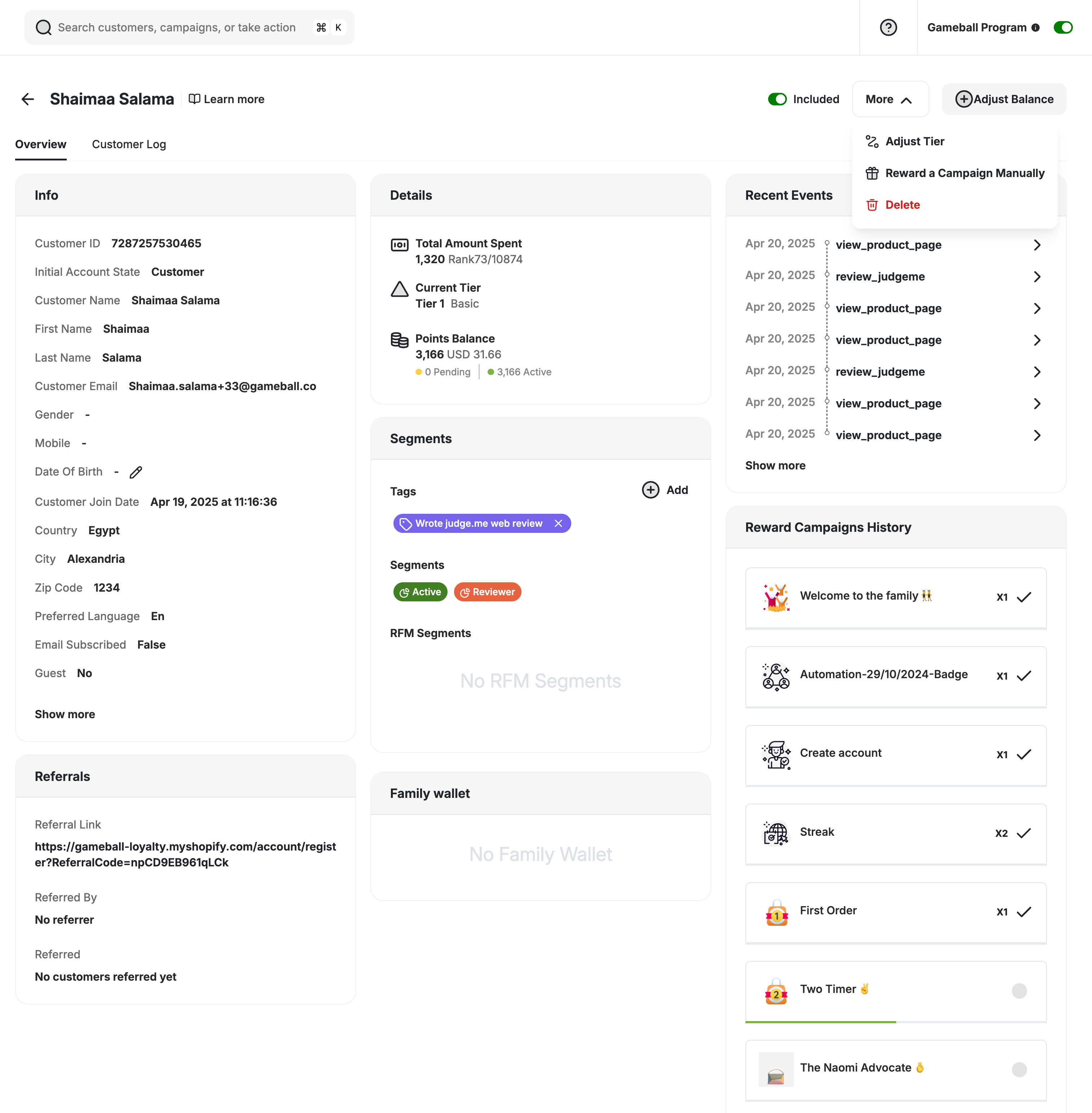
Profile Overview
You can access the profile of any customer by navigating to Customers, then clicking the name or ID of any listed customer. The profile is divided into several key sections:Info & Details
Info & Details
You can view essential customer information grouped into the following areas:Info Panel
- Includes identity and contact details such as name, email, mobile number, location, and customer status (e.g., guest or registered).
- Displays unique attributes and behavioral indicators such as UTMs and devices used.
- Shows whether the customer is subscribed to your emails and their preferred language.
Referrals
Referrals
This panel includes:
- The customer’s unique referral link
- Who referred them (if any)
- A list of customers they have referred
Details Panel
Details Panel
- Total Amount Spent: Overall spending captured through your platform.
- Current Tier: Customer’s current VIP tier.
- Points Balance: Total earned points, broken down into active, pending, and on hold.
- Active: Points the customer can spend right now.
- Pending: Points earned but not yet activated (e.g. still within a return window).
- On Hold: Points temporarily frozen — for example, when a refund is being processed — and released or revoked once the outcome is confirmed.
Family Wallet
Family Wallet
If your program has Family Wallet enabled, this section will show the customer’s wallet group with the combined points balance.Learn more in the Family Wallet article.
Recent Events
Recent Events
Displays a timeline of customer interactions or events triggered on your platform. You can click Show More to load additional recent events.Learn more in the Customer Events article.
Reward Campaigns History
Reward Campaigns History
This section lists all the campaigns the customer has completed or participated in. For each campaign, you can:
- View the name and type of campaign
- See how many times it was completed
- Identify which are completed vs. in-progress
Communication Activities
Communication Activities
- See message type icons (email, in-app, etc.) and key dates like Sent and Clicked at a glance.
- Cards are sorted by newest first, with a Load More option for long histories.
- When empty, you will see: “No Communication Activities Yet.”
Automation Activities
Automation Activities
- Each automation now displays its name, status (Completed, Waiting, or Exited), and key dates (Entry, Complete, or Exit).
- Compact one-line view for simple automations.
- When empty, you will see: “No Active Automations.”
Customer Log & Order Points Receipt
The Customer Log tab shows a timeline of every transaction, campaign completion, and activity for the customer. Clicking on an order number in the log opens the Order Details panel, which includes a full Points Receipt — a line-by-line breakdown of exactly how points were calculated for that order:- Order summary: order date, when Gameball received it, and the products included.
- Why these points: for each product, Gameball shows the eligible amount, the rate applied (e.g. “base rate 3 pts”), any campaign multiplier, and the resulting item points. Items that earned 0 points show the reason (e.g. ineligible amount).
- Order subtotals: shipping, discounts, and any coupon applied.
Actions You Can Take
At the top of the customer profile, you will find several management options:Related Articles
Customer Profile Attributes
Learn about all customer profile attributes and how to customize them.
Gameball Referral Program
Gain insights on launching and managing your referral program.